Category: Exadata

  • Quick Guide to Oracle Database and GI Gold Image Clone Patch Downloads for Exadata

    Quick Guide to Oracle Database and GI Gold Image Clone Patch Downloads for Exadata

    Sometimes its the little things that annoy me the most. OK, maybe its more often than sometimes.

    In today’s episode of annoying things, I was looking for the latest Oracle database and grid infrastructure gold images for Exadata so I can update my databases to Oracle AI Database 26ai (more on that in another post).

    As always, I go to the following MOS notes – 888828.1, and 888.1 – to get the desired information.

    Which give me the specific patches I need to download. (888828.1 first, followed by 888.1)

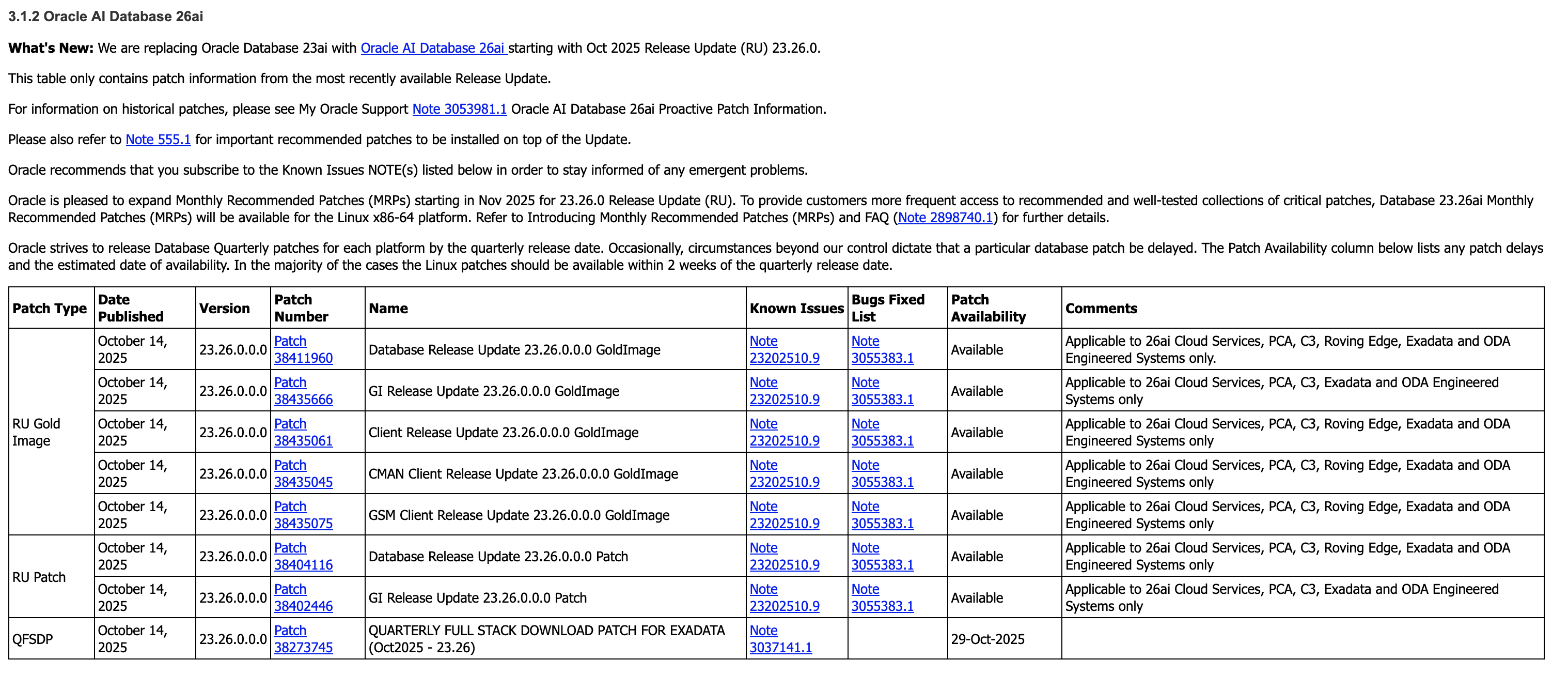
    Graphic of patches from MOS note 888828.1 for Oracle AI Database 26ai on Exadata
    Graphic of patches from MOS note 8881 for Oracle AI Database 26ai

    But here’s the thing – I want the Database and GI Gold Image Clone files for Exadata so I can use them with OEDACLI to install and update my VM clusters.

    In MOS, to find these you can search for “DB SOFTWARE CLONE” or “‘GI SOFTWARE CLONE” and do some digging to find what you’re looking for.

    But the easiest option to find this information is to use OEDA itself.

    Firstly, make sure you download the latest OEDA release from https://www.oracle.com/database/technologies/oeda-downloads.html

    Then unzip it to a location of your choosing, fire up the Web UI and walk through creating a configuration, or upload and update an existing configuration, which will give you the desired information in the installation report at the end!

    Image of OEDA installation report Appendix B with the required download files and patches

    Simple right. Sure – but its actually even easier than this.

    OEDACLI has a great little feature which gives you this same information, namely the patches you need to download, in two simple commands.

    Again, after downloading the latest OEDA release, start oedacli from the command line. You don’t need to provide a configuration file.

    ./oedacli

    Then, use the ‘list requiredfiles’ command and pass in the DB or GI versions you want information about.

    oedacli> LIST REQUIREDFILES DBVERSION=23.26.0.0.0
    
    VM_DB_FILES_23.26.0.0.0 : p38455285_2326000DBRU_Linux-x86-64.zip : db-klone-Linux-x86-64-2300026000.zip
    VM_DB_KVM_FILES_23.26.0.0.0 : p38455285_2326000DBRU_Linux-x86-64.zip : db-klone-Linux-x86-64-2300026000.zip
    BM_DB_FILES_23.26.0.0.0 : V1043785-01.zip

    And

    oedacli> LIST REQUIREDFILES GIVERSION=23.26.0.0.0
    VM_GI_FILES_23.26.0.0.0 : p38455288_2326000GIRU_Linux-x86-64.zip : grid-klone-Linux-x86-64-2300026000.zip
    VM_GI_KVM_FILES_23.26.0.0.0 : p38455288_2326000GIRU_Linux-x86-64.zip : grid-klone-Linux-x86-64-2300026000.zip
    BM_GI_FILES_23.26.0.0.0 : V1043786-01.zip

    So for the DB, I want to grab patch 38455285, and for GI I want patch 38455288.

    So what was annoying me about that? My own memory! This neat feature has been around since the around 2017 (if not earlier), but somewhere along the way I forgot about it and started doing things the hard way again…

    Oh, and while we still have oedacli running, if you want to know what software versions are supported on your generation of Exadata, the LIST SOFTWAREVERSIONS command is really helpful.

    oedacli> list softwareversions where type=X8M
    GI Versions for X8M
    11.2.0.4.210119
    12.1.0.2.220719
    12.2.0.1.220118
    18.14.0.0.210420
    19.29.0.0.251021, 19.28.0.0.250715, 19.27.0.0.250415, 19.26.0.0.250121
    23.26.0.0.0, 23.9.0.25.07, 23.8.0.25.04, 23.7.0.25.01
    Recommended GI version: 23.26.0.0.0
    
    DB Versions for X8M
    11.2.0.4.210119
    12.1.0.2.220719
    12.2.0.1.220118
    18.14.0.0.210420
    19.29.0.0.251021, 19.28.0.0.250715, 19.27.0.0.250415, 19.26.0.0.250121
    23.26.0.0.0, 23.9.0.25.07, 23.8.0.25.04, 23.7.0.25.01
    Recommended DB version: 23.26.0.0.0

    Make sure you have the appropriate support in place for any versions earlier than 19c.

    And that’s it – the easiest way to get the patch numbers for the Gold Image Clones used by OEDA and Exadata to deploy and update Oracle Database and Grid Infrastructure!

  • Ultra-fast PDB thin clones on Exadata Exascale

    Ultra-fast PDB thin clones on Exadata Exascale

    Want to see how quick it is to create a clone of an Oracle 23ai PDB on Exadata Exascale?

    First a little background information.

    I have a “simple” database in the example, with a PDB – named DEMOPDB1.

    show pdbs
    
    SQL> show pdbs
    
       CON_ID CON_NAME    OPEN MODE     RESTRICTED
    _________ ___________ _____________ _____________
            2 PDB$SEED    READ ONLY     NO
            3 PDB1        READ WRITE    NO
            4 DEMOPDB1    READ WRITE    NO

    It’s approximately 2.4 TB in size (temp excluded).

    SQL> select p.name, sum(f.bytes)/1024/1024/1024 as total_gb
      2  from v$pdbs p, v$datafile f
      3  where p.con_id = f.con_id
      4* group by p.name;
    
    NAME                        TOTAL_GB
    ___________ ________________________
    PDB$SEED          10.625396728515625
    PDB1              14.718536376953125
    DEMOPDB1       2403.8817901611328125

    To create a clone of this PDB on Exascale, all we need to do is

    SQL> set timing on; <- so you can see how fast it is
    
    SQL> create pluggable database demopdb2 from demopdb1 snapshot copy;
    
    Pluggable database DEMOPDB2 created.
    
    Elapsed: 00:00:11.105 <- ~2.4 TB in under 12 seconds!!

    The keywords ‘SNAPSHOT COPY’ are important here. They’re instructing the database to use the space-efficient, thin-provisioned, redirect-on-write capabilities of Exascale to create

    Then, we’ll open it up.

    SQL> alter pluggable database DEMOPDB2 open instances=all;
    
    Pluggable database DEMOPDB2 altered.
    
    Elapsed: 00:00:10.897 <- opening the PDB on 2 instances in this case

    Check the size of the new PDB – spoiler alert, its the same size as the PDB I was cloning!

    SQL> select p.name, sum(f.bytes)/1024/1024/1024 as total_gb
      2  from v$pdbs p, v$datafile f
      3  where p.con_id = f.con_id
      4* group by p.name;
    
    NAME                        TOTAL_GB
    ___________ ________________________
    PDB$SEED          10.625396728515625
    PDB1              14.718536376953125
    DEMOPDB1       2403.8817901611328125
    DEMOPDB2       2403.8817901611328125 <- new PDB!

    And that’s it – less than 30 seconds and you have a thin clone of a PDB.

    How cool, and easy, is that!

  • Getting Oracle Database spfiles (and other files) in and out of Exadata Exascale

    I was recently playing with the new AI Vector Search capabilities of Database 23ai, when I did something a little daft.

    Without really thinking about what I was doing, I increased the memory allocated to vector_memory_size. “Ok” you say, “Whats wrong with that?” At face value nothing, I changed a parameter. But as I didn’t think about the any of the other memory parameters, like sga_max_size and sga_max_target, I set myself up for an inevitable problem if I restarted the database, or the VMs I was using were restarted.

    And restart the database (and the VMs) I did – or tried.

    And restart the database did not.

    Without worrying about how I messed up, lets cover how I got out of this pickle.

    First, as the title indicates, I’m working on an Exadata that has been deployed with the awesome (if I do say so myself) Exascale technology. You can check out more about Exascale on the Exadata PM blog. For now, know that at its core is a new decoupled storage management system that manages storage resources globally, as in for many database or VM clusters, rather than cluster-by-cluster. It has similarities to ASM, but introduces a ton of new capabilities including resource pooling, and very cool database instant snapshot and cloning features. More on those another time. Back to my “broken” database.

    As my database won’t start – not even in mount mode – I can’t easily update the vector_memory_size parameter. So I need to do the following:

    1. Extract the spfile from Exascale as a text file
    2. Remove or change the vector_memory_size parameter
    3. Create an spfile from the edited text file
    4. Start the database

    Exascale aside, I sure most if not all DBA’s have had to do this at some point in their careers.


    Step 1 – get the spfile!

    SQL*Plus and sqlcl make this easy. Simply fire up your chosen utility and

    SQL> create pfile='/tmp/pfile.ora' from spfile;

    That gets us our parameters out of Exascale into an easily editable text file.


    Step 2 – edit the pfile!

    Again, this is pretty simple. Start your text editor of choice, e.g. vi, emacs, nano, pico, etc, and make the required changes to the file you created in the last step.

    In my case, rather than remove or downsizing the memory allocation for vector_memory_size, I’m going to up-size my SGA.

    For the sake of comparison, this was the SGA size before I shotdown the database and realized what I’d done.

    SQL> show sga
    
    Total System Global Area 6439969072 bytes
    Fixed Size		    5439792 bytes
    Variable Size		 2030043136 bytes
    Database Buffers	 2248146944 bytes
    Redo Buffers		    8855552 bytes
    In-Memory Area		 2147483648 bytes
    Vector Memory Area	 2147483648 bytes

    Step 3 – (re)create the spfile from the edited pfile!

    Now we have a pfile, we need to re-create the spfile in Exascale so both instances in my cluster can access it.

    First, we’ll create an spfile from the pfile in SQL*Plus or sqlcl

    SQL> create spfile from pfile='/tmp/pfile.ora'

    This will create an spfile in the $ORACLE_HOME/dbs directory of the database VM you are currently on. In my case, its called $ORACLE_HOME/dbs/spfilec8db12.ora

    $ ls -al $ORACLE_HOME/dbs/spfilec8db12.ora
    -rw-r----- 1 oracle dba 8704 May 27 22:12 /u01/app/oracle/product/23.7.0.25/dbhome_1/dbs/spfilec8db12.ora

    Next, we need to backup the existing spfile. I may be a Product Manager these days, but good old DBA instincts are hard to suppress.

    First, lets get the location of our databases spfile using srvctl.

    $ srvctl config database -db C8DB1|grep -i spfile
    Spfile: @exapm13050608vault/EXAPM13050608-82B1CA80638E4F86BF2E4B3EABC7B6E7/C8DB1/PARAMETERFILE/spfile.OMF.628AA9E0

    Exascale includes a new utility called XSH – the Exascale Shell.

    XSH includes a cp command that allows us to copy files in and out of Exascale storage. ASM has a similar capability.

    Using XSH, we’ll copy our file current spfile to a safe location.

    $ xsh cp @exapm13050608vault/EXAPM13050608-82B1CA80638E4F86BF2E4B3EABC7B6E7/C8DB1/PARAMETERFILE/spfile.OMF.628AA9E0 /tmp
    
    $ ls -al spfile.OMF.628AA9E0
    -rw-rw---- 1 oracle oinstall 8704 May 27 22:15 spfile.OMF.628AA9E0

    Now we can copy our new spfile back into Exascale using XSH. Note in the command below, tell XSH that its copying in an ‘init‘ file with the --ftype attribute.

    $ xsh cp --ftype init $ORACLE_HOME/dbs/spfilec8db12.ora @exapm13050608vault/EXAPM13050608-82B1CA80638E4F86BF2E4B3EABC7B6E7/C8DB1/PARAMETERFILE/spfile.OMF.628AA9E0
    
    $ xsh ls -l @exapm13050608vault/EXAPM13050608-82B1CA80638E4F86BF2E4B3EABC7B6E7/C8DB1/PARAMETERFILE/spfile.OMF.628AA9E0
                8704             Mar 10 15:24:05 2025 @exapm13050608vault/EXAPM13050608-82B1CA80638E4F86BF2E4B3EABC7B6E7/C8DB1/PARAMETERFILE/spfile.OMF.628AA9E0

    Step 4 – restart the database!

    Finally, use srvctl to restart the database

    $ srvctl start database -db C8DB1

    Success! The database is back up and running.

    Comparing the SGA now with the earlier one, you can see I added 4 GB to the sga_max_size and sga_target being the total to 10 GB.

    SQL> show sga
    
    Total System Global Area   10736573488 bytes
    Fixed Size                     7076912 bytes
    Variable Size               2516582400 bytes
    Database Buffers            3909091328 bytes
    Redo Buffers                   8855552 bytes
    In-Memory Area              2147483648 bytes
    Vector Memory Area          2147483648 bytes

    And that’s it. You can copy spfiles in and out of Exascale. In reality, you can copy many more file types in and out – check out the XSH – the Exascale Shell command reference for all the details.