Autoscaling for Autonomous Database (Shared or Serverless) was made available in May 2019. So what is it? And how does it work?
First and foremost, the UI has changed a little as of the time of writing. This seems to be due to the release TODAY for the Dedicated Autonomous Transaction Processing service (more on this in a future post). That said, creating an ADW or ATP is just as easy as it was before, but now you’ll also see the new checkbox as shown in the image below.
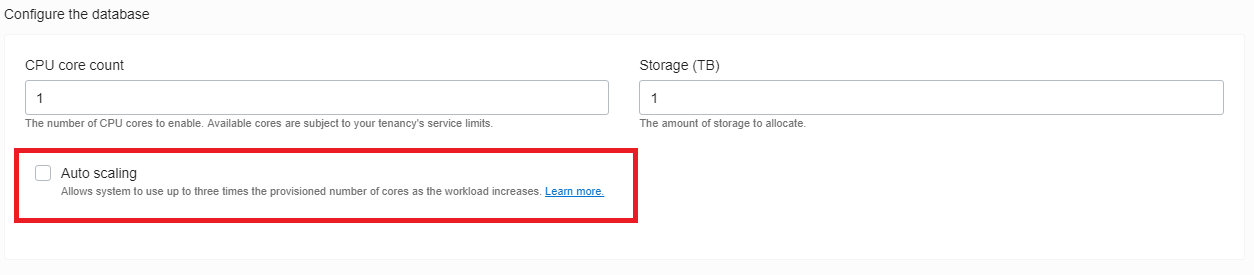
So as you can see, enabling Autoscaling is as easy as checking this box when you create a new ADW/ATP or, you can come back and modify an existing database using the Scale Up/Down link (or API).
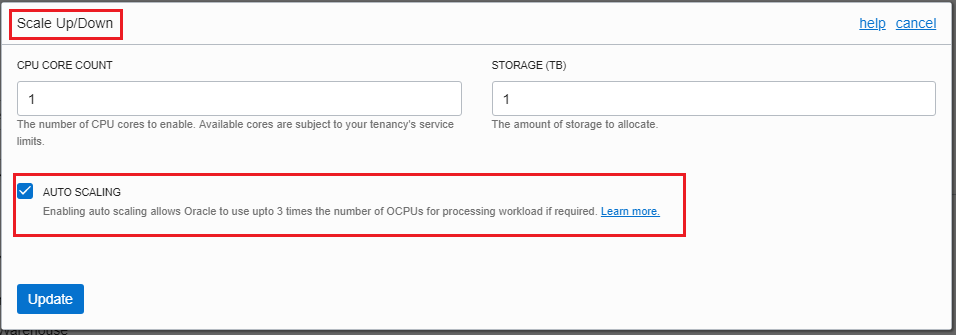
But what is the database doing under the hood? Well, if you’ve played with the Autonomous DB platform in the past, you may have poked around the internal views to see how Oracle has configured the service.
Lets start with definition of what Autoscaling in Autonomous DB means:Enabling auto scaling allows an Autonomous Data Warehouse database to use up to three times more CPU and IO resources than the currently specified CPU Core Count (up to a maximum of 128 CPU cores). When auto scaling is enabled, if your workload requires additional CPU and IO resources the database automatically uses the resources without any manual intervention required. (Source – ADW New Features Doc)
So this means that Oracle will autonomously make upto 3x the CPU and IO resources available for workloads in the database as and when needed.
Back to the internal views – if you’ve looked into a ADW/ATP that does not have autoscaling enabled, you may have fired off this command in SQL Developer/SQL*Plus:
show cpu_count
For non-autoscaling instances, this will be set to the same number as the number of OCPUs you have configured for your ADW/ATP. E.g. – if you have configured 4 OCPUs, cpu_count will be set to 4.
For instances with Autoscaling enabled, this will be set to the 3x the number of OCPUs you have chosen to configure. E.g. – if you have configured 4 OCPUs, cpu_count will be set to 12.
So, with Autoscaling enabled, you already have access to 3x the number of OCPUs. The database doesn’t need to monitor workload and make decisions about when it needs to add resources or attempt to understand the best time to remove resources. They are already there.
BUT, just because you have access to them, doesn’t mean that you are paying for them. With autoscaling enabled, you pay for the configured OCPUs as a base – so 4 in the example above – and for usage between 4 and 12 OCPUs, Oracle takes the average usage above the configured baseline.
The final point to make is that with Autoscaling enabled, the parallel degree limit for the high and medium services remains set to the number of OCPUs configured, not the 3x value.
Cheers
Alex





 alexblyth.net
You must be logged in to post a comment.